f keys not working on hp laptop

Title: If Function keys do not work on the Laptop F1 - F12
Channel: Simple Tech
If Function keys do not work on the Laptop F1 - F12 by Simple Tech
f keys not working on hp laptop, function keys not working on hp laptop, function keys not working on hp laptop windows 11, fn keys not working on hp laptop, f1 key not working on hp laptop, function button not working on hp laptop, fn button not working hp laptop, function keys not working windows 10 hp laptop, why are my function keys not working on my hp laptop, why my laptop function keys not working
HP Laptop F Keys: The SHOCKING Reason They're NOT Working!
HP Laptop F Keys: Unlocking the Mystery of Non-Functioning Function Keys!
Have you ever slammed your fist on your desk after realizing your function keys on your HP laptop weren't cooperating? It's an experience many of us know all too well. First, let's acknowledge the sheer frustration. You're in the middle of something crucial, and suddenly, those helpful little keys decide to stage a revolt. But, before you chuck your laptop out the window, let's dive into what’s likely happening.
Deciphering the F Key Enigma
These "F" keys, stretching across the top of your keyboard, are seemingly small. Yet, they carry immense power. They’re also known as function keys. They control everything from screen brightness to volume control. Unfortunately, these keys are often the first to give up when things go awry. Consequently, their malfunction can be a major inconvenience. The reasons can vary.
The Stealthy Culprit: The Function Key Lock
Often, the problem lies in a simple setting. For example, your function key lock might be engaged. Therefore, you must first check for this. More specifically, HP laptops frequently feature a "Fn" key. This key is usually located near the Ctrl key. In addition, look for a related lock key. Typically, it has a padlock icon. Moreover, pressing these two keys simultaneously toggles the function lock.
Software Shenanigans and Driver Dilemmas
Beyond the simple lock, software can be the issue. In other words, your function keys rely on drivers. Drivers are small pieces of software. These tell your operating system how to interact with your hardware. Interestingly, outdated or corrupted drivers can render your function keys useless. Additionally, software conflicts or corrupted operating system files can disrupt their functionality. So, make sure everything is up to date.
Troubleshooting Tactics: A Step-by-Step Guide
Generally, you can troubleshoot the function keys. First, try a simple restart. Restarting often clears out temporary glitches. After that, try pressing the Fn key. Then test your F keys again. Furthermore, check your keyboard settings in your operating system. In the event the function key lock isn't to blame, update your drivers. As an illustration, go to HP's website and search for your laptop model. Download the latest drivers. On the other hand, if you are comfortable with it, consider a system restore. Doing so reverts your system to an earlier state. This option works if you suspect recent software installation caused the issue.
Hardware Hurdles and Physical Failures
Sometimes, the problem goes beyond software. Therefore, hardware issues are possible. For instance, physical damage. Subsequently, spilled liquids can damage the keyboard. Alternatively, a loose connection within the laptop might be the culprit. In this case, it may require professional repair. Consequently, opening the laptop for internal inspection is dangerous.
The Ultimate Resolution: Seeking Expert Help
Despite all your efforts, the function keys might still fail. Thus, don’t hesitate to seek expert intervention. For instance, contact HP support directly. Alternatively, take your laptop to a reputable repair shop. Ultimately, a professional can quickly diagnose and resolve the problem. In addition, they can prevent further damage.
Preventive Measures: Keeping Your F Keys Functional
Fortunately, there are preventative measures you can take. Firstly, keep your laptop clean. Debris can interfere with the key mechanisms. Secondly, install a screen protector. A screen protector can prevent liquid from entering the keyboard. Thirdly, regularly update your drivers. This ensures they run at their best. Finally, handle your laptop with care. This ensures it lasts longer.
The Shocking Truth?
The “shocking” truth behind your non-functioning function keys? It is often something simple. Therefore, don’t panic. Instead, start with the basics. Because you are not the only one dealing with this issue. Nevertheless, careful troubleshooting, and professional help, can get your keys working again. Above all, remain patient. Finally, you'll get back to efficient computing.
Gigabyte Laptop Keyboard DEAD? This FIX Will SHOCK You!HP Laptop F Keys: The SHOCKING Reason They're NOT Working!
Hey there, tech enthusiasts! Ever been in the middle of something crucial, maybe writing a killer email, tweaking a spreadsheet, or even just trying to adjust your volume and your HP laptop's F keys decided to stage a revolt? You're not alone! We've all been there. The sheer frustration of a non-functioning F key can feel like your digital world is crumbling around you. But fear not, because we're diving deep into this common conundrum to uncover the shocking reason why your HP laptop's F keys might be playing hide-and-seek with you. Get ready to troubleshoot, discover, and—hopefully—get those keys back to doing their job!
1. The Silent Rebellion: Understanding the F Keys and Their Importance
Let's face it, the F keys—F1, F2, F3, and so on—are the workhorses of our laptops. They’re like those secret shortcuts that make everything faster and more efficient. From adjusting screen brightness to controlling volume, muting audio, and even accessing specific functions within applications, they're vital. Think of them as your digital Swiss Army knife. But when they stop working, productivity grinds to a halt. It's like trying to drive a car without a gas pedal; utterly useless!
2. The Usual Suspects: Common Causes for Non-Functional F Keys
Before we get to the shocking reason, let’s cover some of the usual suspects. Often, the simplest solutions are the most effective. We've all been guilty of overlooking the obvious, so let's run through some quick checks:
- The Fn Key Dance: Most HP laptops require you to press the "Fn" key (usually located near the Ctrl key) in conjunction with the F key. Is that Fn key securely pressed? Sometimes, it's a simple oversight!
- Software and Driver Issues: Outdated or corrupted drivers can easily cause problems with your F keys. Think of drivers as the language your laptop and your hardware use to communicate. If the language is garbled, nothing works!
- BIOS Settings: The BIOS (Basic Input/Output System) is the fundamental software that starts your computer. Sometimes, a setting within the BIOS can affect how the F keys behave.
- Hardware Glitches: Rarely, there might be a physical issue with the keyboard itself or the connection between the keyboard and the motherboard.
3. The Shocking Revelation: The Hidden Reason Behind F Key Failure
Alright, folks, buckle up because we're about to expose the shocking reason. Drumroll, please… It’s not always a hardware failure, software glitch, or BIOS setting. Sometimes, it's a simple feature buried deep within your HP laptop's design that's causing the problem: The Function Key Lock.
This "lock" feature, often triggered by pressing the Fn key in combination with another key (like Esc or the Caps Lock key), essentially switches the function of your F keys. Instead of performing their designated functions (brightness, volume, etc.), they might, for example, activate the "alternate" function printed on the keys themselves (like launching a specific program or initiating a search).
Think of it this way: It’s like having a light switch with two modes. One mode is regular light; the other is a disco strobe. The function key lock is your disco strobe, inadvertently activated and wreaking havoc.
4. Unlocking the Truth: How to Enable/Disable the Function Key Lock
The process to unlock your F keys is usually straightforward, but it varies slightly depending on your HP laptop model. Here's a general guide:
- The Fn + Esc Combo: This is the most common method. Press and hold the Fn key, then press the Esc key. The F key lock should toggle, and your F keys should spring back to action.
- Check the Caps Lock/Num Lock Indicator: Some models use the Caps Lock or Num Lock light to indicate the F Key Lock status. If the light is on, try the Fn + Esc combination to turn it off.
- Consult Your Laptop's Manual: If the Fn + Esc method doesn't work, consult your HP laptop's user manual. It might provide specific instructions for your model. You can often find the manual online by searching for your laptop's model number plus "user manual."
5. Troubleshooting Beyond the Basics: When the Simple Solutions Aren't Enough
If unlocking the Function Key Lock doesn't solve the problem, let's explore a few other troubleshooting steps:
- Driver Updates: Visit the HP support website, enter your laptop's model number, and download the latest keyboard drivers. This helps rectify any outdated software.
- BIOS Update: Check the HP support website for any BIOS updates specific to your laptop model. Updating the BIOS can often resolve underlying issues with hardware functionality. However, make sure you follow the instructions precisely, as BIOS updates can be risky if not done correctly.
- Hardware Diagnosis: If you suspect a hardware issue, consider running HP’s built-in diagnostic tools or contacting HP support for further assistance.
6. The Windows Factor: Compatibility and Settings
Windows, being the operating system, also has a role. The way Windows interacts with your keyboard can sometimes affect your F keys.
- Update Windows: Ensure your Windows operating system is up to date. Microsoft regularly releases updates that include driver improvements and bug fixes, which may resolve F key issues.
- Check Keyboard Settings in Windows: Go to "Settings" in Windows, then "Devices," and finally, "Keyboard." Here, you might find options related to function key behavior.
7. Beyond the Keys: Alternative Shortcuts and Workarounds
While we're focused on F keys, it's wise to become familiar with alternative methods. They can be lifesavers when your F keys are still refusing to cooperate:
- Volume Control: Many HP laptops have dedicated volume buttons on the side or the top of the keyboard. In Windows, you can also adjust the volume using the speaker icon in the system tray (bottom right).
- Brightness Control: Use the display settings in Windows to adjust brightness. Right-click on the desktop, select "Display settings," and adjust the slider to modify the brightness.
- Function-Specific Software: Some applications offer keyboard shortcuts or settings that mimic the functionality of the F keys. For instance, a video editing software may have dedicated shortcuts for controlling playback (F keys).
8. Preventative Measures: Keeping Your F Keys Happy
Prevention is always better than cure! Here are some tips to help keep your F keys functioning smoothly:
- Regular Maintenance: Keep your keyboard clean from dust and debris. Use compressed air to blow out crumbs and dirt.
- Software Updates: Install all software updates: Windows updates, driver updates and any application-specific updates.
- Avoid Extreme Conditions: Protect your laptop from extreme temperatures, moisture, and direct sunlight as these can damage internal components.
9. The HP Support Lifeline
When all else fails, don't hesitate to reach out to HP support. Their specialists are trained to diagnose and resolve hardware and software issues with your laptop. You can find contact details and support resources on the HP website.
10. The Keyboard Landscape: Understanding Your Keyboard's Design
Modern keyboards, with their array of keys, lights, and functions, are complex pieces of engineering. The design of your keyboard determines the functionality of all the keys, including F keys. Understanding your keyboard type (membrane, mechanical, etc.) can assist in troubleshooting.
11. Third-Party Software and Their Influence
Certain software can affect the functionality of your F keys. Consider programs that are customized to your key assignment. If you are using third party programs such as the ones, remove this to test the F keys' functionality.
12. Is it the keyboard or the Laptop's Motherboard?
Sometimes, your keys may not be working, because of a hardware connectivity issue. It could be disconnected from the motherboard. Get it checked.
13. The Reset Option: Restoring Defaults
There has to be a way to restore the settings to default mode. Go to settings, find the reset option. This may also help restore the F keys and their functionality.
14. The Battery Factor: Energy Management
The F keys function may be affected if the battery is running low. Plug the laptop to charging mode and check.
15. Final Thoughts: Embracing the F Key Solution
And here we are. We’ve successfully journeyed through the world of F keys, dissected their secrets, and unveiled the most shocking reason they might not be working. Hopefully, you've learned how to diagnose, troubleshoot, and get those keys back in action. Remember, a little knowledge goes a long way! We hope this journey has been helpful, and your F keys are now happily functioning. As always, feel free to ask; we're always here to help!
In Conclusion F keys are an important part of our arsenal, helping us with our day to day activities. Non-functioning F keys may be due to software glitches, hardware malfunction, the function key lock, and various other cases. We have provided you with various ways to get the keys working. We hope you found this article useful.
Frequently Asked Questions (FAQs)
**1. My Fn + Esc combination isn't
Laptop Keyboard Died? This ONE Trick Will SHOCK You!How to Lock or Unlock the Fn Function Key on an HP Notebook HP Support
By HP Support How to Lock or Unlock the Fn Function Key on an HP Notebook HP Support by HP Support
Fix HP Touchpad Not Working in Windows 11 10 How To Solve hp Laptop touchpad Issues

By Victor Explains Fix HP Touchpad Not Working in Windows 11 10 How To Solve hp Laptop touchpad Issues by Victor Explains
HP LAPTOP KEYBOARD KEY REPAIR GUIDE 450 455 470 G5 G6 745 846 840 How to Install Fix keys DIY
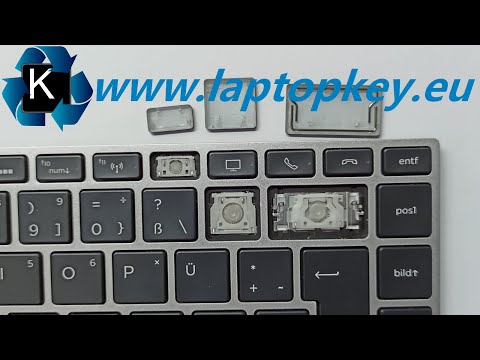
By Laptopkey.eu HP LAPTOP KEYBOARD KEY REPAIR GUIDE 450 455 470 G5 G6 745 846 840 How to Install Fix keys DIY by Laptopkey.eu

Title: How to Enable or Disable Function Fn Keys in Windows 1011 - 2 Ways to Fix
Channel: Tech White
How to Enable or Disable Function Fn Keys in Windows 1011 - 2 Ways to Fix by Tech White
Working With Laptop
HP Laptop F Keys: Decoding the Silent Treatment
Do you ever feel like your HP laptop is giving you the cold shoulder? A whole row of keys, those handy F keys, are stubbornly refusing to cooperate. It's a maddening experience, particularly when you're trying to adjust the volume, tweak the screen brightness, or refresh a webpage with a single tap. We know the frustration, and we're here to unravel the mystery behind your silent function keys. Prepare to delve deep, because we’re about to embark on a journey to understand why your HP laptop’s F keys might be playing hard to get and, more importantly, how to restore them to their former glory.
Understanding the F Key Fundamentals
Before diving into the specifics, let's revisit what the F keys are and what they’re designed to do. Situated at the top of your keyboard, these are your Function keys, labelled F1 through F12. They’re not just decorative elements; they're your gateway to a suite of convenient functionalities. They offer quick actions, minimizing the need to navigate through multiple menus or settings.
These keys are programmable. In a perfect world (read: when everything's working as it should), each F key should be paired with a specific action. F1 often calls up the help menu, F2 might allow you to rename a file, F5 usually refreshes a web page, or F11 might put your work in full-screen mode. Alongside their individual functions, F keys often work in combination with the “Fn” (Function) key, unlocking a range of system-related actions, such as adjusting the screen brightness, controlling the volume, or enabling/disabling Wi-Fi. These supplementary functions are often the primary reason people find themselves in a situation where their F keys are not working.
The Primary Culprit: The "Fn" Key Conundrum
The most common reason for non-responsive F keys on an HP laptop stems from the "Fn" key and its interaction with the function row. HP laptops, like many others, give the user the option to toggle the mode of the F keys. You can set them to have standard F key functionality (F1, F2, F3, etc.) or to control system functions like volume or display brightness. Often, the “Fn” key is the key to switching between these two modes.
The default setting on many HP laptops is to prioritize the system functions. This means the F1-F12 keys control volume, brightness, and other system settings directly. To use the standard F key functions, you must press the "Fn" key in combination with the appropriate F key. This setup can be a source of confusion, and therefore, the root of your problem.
Here's How This Plays Out:
- System Function Mode (Default): Pressing an F key directly (e.g., F2) adjusts a system setting (like volume). To use F2's designated action (e.g., renaming a file), you must press the "Fn" key + F2.
- Standard F Key Mode: To switch to this mode, you'll often need to toggle a setting, usually with the "Fn" key. We'll delve into this in the next section.
Deciphering the BIOS and UEFI Settings
The BIOS (Basic Input/Output System) or UEFI (Unified Extensible Firmware Interface) is the fundamental software that runs when your laptop starts. It controls your hardware before the operating system fully boots. Within the BIOS or UEFI settings, you can typically find an option to control the behavior of your function keys. This is a key area to check.
How to Access BIOS/UEFI:
- Power Off Your Laptop: Ensure your laptop is completely shut down.
- Power On and Press the Designated Key: Power on your laptop and repeatedly press the key specified in your laptop's manual. The key is most likely F2, F10, F12, ESC, or Del. Consult your HP laptop's documentation for the precise key.
- Navigate the BIOS/UEFI Interface: The BIOS/UEFI interface looks different depending on your HP laptop model. Use the arrow keys and Enter key to navigate.
- Find the Function Key Setting: Look for a setting related to "Function Key Behavior," "Action Keys," or similar. It might be located under the "System Configuration" or "Advanced" tab.
- Select Your Preferred Mode: Choose the setting that allows you to configure the F key behavior to your liking. Often, you will see options like "Function Key Mode" or "Multimedia Key Mode." Select the desired mode (e.g., "Function Key Mode" if you want standard F key functionality by default).
- Save and Exit: Save your changes and exit the BIOS/UEFI. Your laptop will restart, and your F keys should now function as configured.
The HP Support Assistant: Your Software Sidekick
HP includes a helpful software called the HP Support Assistant. This tool provides access to drivers, software updates, and troubleshooting resources. It's worth checking the HP Support Assistant for potential solutions to your function key woes.
How to Use the HP Support Assistant:
- Launch the Application: Locate and open the HP Support Assistant. It's usually pre-installed on your HP laptop, or you can download it from the HP website.
- Check for Updates: Navigate to the "Updates" or "Updates and Messages" section.
- Update Drivers and Software: Apply any available driver updates, especially those related to the keyboard or system components. Sometimes, outdated drivers can cause function key issues.
- Troubleshooting Tools: The HP Support Assistant may include a troubleshooting section. Run any relevant tests to look for potential hardware or software conflicts.
Driver Dilemmas and Software Conflicts
Outdated, corrupted, or missing drivers can be significant contributors to the malfunction of your F keys. Your keyboard is controlled by drivers that must be up-to-date for optimal functionality. Software conflicts may also be at play. Certain applications can interfere with the function key’s default operations.
Driver Management and Software Conflict Solutions:
- Check Device Manager: Right-click the Start button and open "Device Manager." In the Device Manager, expand the "Keyboards" section.
- Update Keyboard Drivers: Right-click on your keyboard device and select "Update driver." Choose "Search automatically for drivers" to allow Windows to find and install any available updates.
- Uninstall and Reinstall Drivers: If updating doesn't work, try right-clicking the keyboard device and selecting "Uninstall device." Restart your laptop, and Windows should attempt to reinstall the driver automatically.
- Identify and Resolve Software Conflicts: If you suspect a particular program is causing problems, try closing it and see if your F keys start working. You might need to investigate the program's settings or uninstall it.
Hardware Hurdles: Physical Keyboard Issues
While software is the dominant culprit, hardware problems are also possible. A sticky key, liquid damage, or damage to the keyboard cable can render your F keys non-functional.
Troubleshooting Hardware Issues:
- Inspect the Keyboard: Examine your keyboard for any visible signs of damage, such as spilled liquids, sticky keys, or loose keys.
- Clean the Keyboard: If there's debris, try using compressed air to clean beneath the keys. Be careful not to damage the keys or the internal components.
- External Keyboard Test: Connect an external USB keyboard to your laptop. If the external keyboard’s F keys function correctly, it suggests that the problem lies with your laptop’s built-in keyboard.
- Keyboard Cable Check: If you’re comfortable with hardware diagnostics, you could open your laptop to examine the keyboard cable’s connection to the motherboard. However, this is a task for experienced users, as it may void your warranty if done improperly.
- Professional Repair: If the hardware is damaged, it’s best to seek professional repair services or contact to HP support.
Customizing Your F Key Behavior (Advanced Tip)
For tech-savvy users, you can customize the function key behavior by using third-party software, such as AutoHotkey. With AutoHotkey, you can remap your F keys to perform different functions.
How to Customize with AutoHotkey
- Download and Install AutoHotkey: Get the software from the official AutoHotkey website.
- Create an AutoHotkey Script: Create a new text file (e.g.,
FKeyRemap.ahk). - Write Your Script: Use the AutoHotkey syntax to create scripts to remap your F keys.
Example: To make F12 open your web browser
autohotkey F12:: Run, chrome.exe return - Run the Script: Double-click the
.ahkfile to start the script. AutoHotkey will run in the background. Check your system tray to verify script execution.
The Final Takeaway: Regaining Control
Dealing with non-responsive F keys can be frustrating, but often, the solution is within reach. By systematically exploring the "Fn" key settings, BIOS/UEFI configurations, HP Support Assistant updates, driver installations, and hardware checks, you can diagnose and resolve the issue. With these steps, you can reclaim your F
