does msi afterburner work with gaming laptops

Title: MSI Gaming Laptops Best Settings Gain More FPS in 2 mins.
Channel: Tech Tyrial
MSI Gaming Laptops Best Settings Gain More FPS in 2 mins. by Tech Tyrial
does msi afterburner work on gaming laptops, does msi afterburner work on laptops, is msi afterburner safe for laptops, does msi afterburner work with amd
MSI Afterburner on Laptops: The SHOCKING Truth!
MSI Afterburner on Laptops: Unveiling the Hidden Realities
Let's face it, we've all been there. The allure of a beefy gaming laptop, promising desktop-level performance in a portable package. But the reality? Often a frustrating dance with thermal throttling and underwhelming frame rates. Today, we're diving deep into a tool often touted as the savior: MSI Afterburner. However, there's a subtle, yet significant, truth surrounding its application on laptops. Prepare yourself!
The Laptop Landscape: A Different Breed
First off, let's establish the playing field. Desktop PCs and laptops exist in entirely different realms. Desktops can boast expansive cooling solutions and unlimited power budgets. Conversely, laptops are constrained. They are compact machines, often battling with heat, space, and power consumption. This crucial difference significantly impacts how tools like Afterburner function. After all, the environment's constraints define the outcome.
Afterburner's Arsenal: A Brief Overview
Before we get too far, a quick primer. MSI Afterburner, at its core, is a versatile tool. It empowers you to tweak your graphics card's performance. You can overclock, undervolt, and monitor various system parameters. The software is a favorite among PC enthusiasts. It provides in-depth control over GPU settings. It allows for fine-tuning to maximize performance. However, the laptop environment throws a wrench into these promises.
The Shocking Reality: Limitations and Trade-offs
Here comes the kicker. While Afterburner works on laptops, the results can be… nuanced. The “shocking truth” isn’t that it's useless. Instead, it’s that the potential gains are often limited by hardware constraints. You’ll bump up against thermal walls more often than open roads. So, what are you to expect?
- Thermal Throttling: The Silent Killer: One of the biggest challenges is heat. Laptops have limited cooling capabilities. Overclocking generates more heat. Your GPU will quickly reach its thermal limit. Consequently, the system throttles performance to prevent damage. This negates any overclocking benefits. In essence, you're fighting a losing battle.
- Power Delivery Constraints: Laptops also have power delivery limitations. The power adapter may not always be able to handle aggressive overclocking. Thus, you may experience instability or crashes. This is something to keep in mind.
- Undervolting: A Double-Edged Sword: Undervolting can be beneficial. It reduces heat and power consumption. However, it also introduces the risk of instability. It's a delicate balancing act. Moreover, it requires careful testing.
Optimizing for Laptop Success: Tips and Strategies
Despite these limitations, all is not lost. You can still utilize Afterburner effectively on your laptop. It’s a matter of understanding and adapting. Therefore, here are some strategies:
- Monitoring is Key: Use Afterburner to monitor your temperatures. Keep a close eye on your GPU and CPU temperatures. This awareness is crucial for preventing throttling.
- Prioritize Undervolting: Experiment with undervolting before overclocking. Reducing voltage can lower temperatures and power consumption. It can also improve stability.
- Conservative Overclocking: If you choose to overclock, be conservative. Small incremental increases are preferable to drastic leaps. Test your settings thoroughly for stability.
- Fan Curve Customization: Adjust your fan curves. Set them to ramp up at lower temperatures. This helps dissipate heat more effectively.
- External Cooling Solutions (Optional): Consider an external cooling pad. They can provide a modest improvement in cooling.
Beyond Afterburner: System Optimization
Remember, Afterburner is just one piece of the puzzle. Furthermore, comprehensive system optimization is vital. Here are some additional tips:
- Driver Updates: Keep your graphics drivers updated. Updated drivers often include performance improvements and bug fixes.
- Clean Installations: Perform clean installations of your drivers. This can resolve conflicts and improve stability.
- Background Processes: Close unnecessary background applications. They eat up system resources and can affect performance.
- Game Settings: Optimize your in-game graphics settings. Lowering settings can significantly improve frame rates.
The Verdict: A Cautious Approach
In conclusion, MSI Afterburner can be helpful on laptops. However, tempered expectations are essential. The potential gains are limited. This stands true, especially compared to a desktop environment. It is not a magic bullet. Furthermore, understand the hardware limitations. Prioritize monitoring, undervolting, and conservative overclocking. With thoughtful application, you can potentially extract some additional performance from your laptop. Ultimately, its success depends on your specific setup and your willingness to approach it with patience. So, proceed with caution, but enjoy the journey.
VPN Disaster! My Laptop's Connection Died (Here's the Fix)Here's the breakdown:
MSI Afterburner on Laptops: The SHOCKING Truth!
Hey, fellow gamers and tech enthusiasts! Ever felt like your laptop's performance is… well, a bit like a race car stuck in first gear? You know, all that shiny horsepower under the hood, but it just won't fully unleash? That's where MSI Afterburner struts into the picture, promising to crank up the heat and unlock hidden potential. But hold your horses! Before you dive headfirst into overclocking your precious gaming rig, let's peel back the layers and uncover the shocking truth about using MSI Afterburner on laptops. We're not just talking about boosting FPS; we're talking about potential pitfalls, hidden benefits, and everything in between. Buckle up, because this ride gets bumpy!
1. MSI Afterburner: The Superhero of Overclocking? (Or is it a Supervillain?)
Let's start with the basics. MSI Afterburner is, in essence, a free piece of software that lets you tweak the settings of your graphics card (GPU). Think of it as a performance tuner for your car engine. You can adjust things like clock speeds, voltage, and fan curves to squeeze out extra frames per second (FPS) in your games. Sounds awesome, right? Definitely. It's like giving your laptop a shot of performance-enhancing steroids. But, like any powerful tool, it comes with its own set of risks and considerations, particularly when applied to the compact and often temperature-sensitive environment of a laptop.
2. Laptop vs. Desktop: A Tale of Two Worlds (and Two Cooling Systems!)
Here's the crucial difference: desktops are built with space and cooling in mind. They have massive heatsinks, powerful fans, and plenty of room for air to circulate. Laptops, on the other hand, are a different beast altogether. They're designed for portability, often sacrificing raw cooling power for a sleek, compact design. This means that overclocking a laptop's GPU is like revving a jet engine in a shoebox—it can get very hot, very quickly.
3. The Perilous Path of Overclocking: Risk vs. Reward
The lure of extra FPS is strong. Who wouldn't want a smoother, more responsive gaming experience? With Afterburner, you can potentially achieve that. But here's the catch: overclocking pushes your GPU beyond its factory-defined limits. This means you're essentially asking it to work harder, generate more heat, and potentially suffer from instability. We're talking crashes, artifacts on the screen (think distorted graphics), and in the worst-case scenario, damage to your GPU. It's a risk-reward scenario where the reward is fleeting glory and the risk is… well, not fun at all.
4. Laptop Cooling: Your Lifeline (or Achilles' Heel)
Since laptops aren't blessed with the same cooling prowess as desktops, the cooling system becomes the most crucial factor. Before even thinking about Afterburner, ask yourself: how good is your laptop's cooling? Does it get incredibly hot during gaming? Does the fan sound like a jet engine taking off? If the answer to either of those questions is yes, proceed with extreme caution. Overclocking will only exacerbate the heat issues, potentially leading to thermal throttling (where the GPU automatically reduces performance to prevent overheating) or, again, damage.
5. Undervolting: The Cool Cousin of Overclocking?
Here's a little secret: sometimes, you can increase performance by reducing the voltage supplied to your GPU. This is called undervolting. It's like giving your GPU a more efficient power supply. Less voltage often translates to less heat, potentially allowing you to run the GPU at higher clock speeds without increasing the temperature. It's a bit counterintuitive, but it can be a fantastic way to optimize your laptop's performance.
6. Monitoring Your System: Knowledge is Power (and Prevents Burnout!)
If you decide to experiment with Afterburner, monitoring your system is non-negotiable. You need to keep a close eye on temperatures, clock speeds, and frame rates. Afterburner has a built-in monitoring system that lets you see all this data in real-time. Use it! Set up an on-screen display (OSD) so you can watch your stats while you game. Think of it like having a dashboard in your car—you constantly check the speed, temperature, and fuel levels to avoid problems.
7. The Balancing Act: Finding the Sweet Spot
Overclocking isn't a one-size-fits-all solution. Every GPU, and indeed every laptop, is different. You'll need to experiment to find the optimal settings for your specific hardware. It's like trying to find the perfect coffee blend—it takes time, patience, and a willingness to try different combinations. Don't expect to simply copy settings you find online. Those settings might work for someone else's laptop, but they could be disastrous for yours. Take it slow, and test thoroughly after each change.
8. Common Misconceptions About MSI Afterburner on Laptops
Let's bust some myths!
- Myth: Afterburner guarantees a massive FPS boost.
- Reality: The boost can be significant, but it depends on your hardware, your game, and how much you overclocks. Sometimes, gains are minimal.
- Myth: Afterburner is only for gaming.
- Reality: While it's commonly used for gaming, Afterburner can also improve performance in other GPU-intensive tasks, like video editing or 3D rendering.
- Myth: Overclocking is always dangerous.
- Reality: Overclocking can be dangerous, but if you proceed with caution, monitor your system, and don't push things too far, you can mitigate the risks.
9. The "Safe" Overclocking Zone: Fact or Fiction?
There's no such thing as a completely "safe" overclocking zone. You are always pushing your hardware beyond its designed parameters. However, you can reduce the risks. Start by making small, incremental changes. Test thoroughly after each adjustment. Pay close attention to temperatures. If things start to get too hot, back off. It's a matter of striking a balance between performance gains and potential risks.
10. Thermal Throttling: The Enemy of Performance
Thermal throttling is the GPU's last line of defense against overheating. When the GPU gets too hot, it automatically reduces its clock speeds to bring the temperature down. This means that all your overclocking efforts could be wasted. You're essentially fighting a losing battle against the heat. If your laptop is constantly thermal throttling, overclocking will be counterproductive. Invest in better cooling first.
11. Fan Control: Taming the Beast Within
Afterburner gives you powerful control over your fans. You can create custom fan curves, which determine how fast the fans spin based on the GPU's temperature. This is a key tool in keeping your laptop cool. Experiment with different fan curves to find the optimal balance between cooling performance and noise level. Don't be afraid to make the fans spin faster when needed; a little noise is often worth the performance boost.
12. MSI Afterburner vs. Laptop Manufacturers' Software
Many laptop manufacturers provide proprietary software that lets you adjust fan speeds and performance profiles. These tools often offer a degree of control, but they may not be as granular or powerful as Afterburner's customization options. The best approach depends on your laptop and your goals. Some users prefer the simplicity of the manufacturer's software, while others want the advanced features of Afterburner.
13. Should You Overclock Your Laptop? The Ultimate Question
So, should you overclock your laptop with MSI Afterburner? The answer is: it depends. Ask yourself the following questions:
- Do I have a well-cooled laptop?
- Am I comfortable with the risks?
- Am I willing to monitor my system closely?
- Am I prepared to experiment and test different settings?
If you answered "yes" to these questions, you can consider overclocking. But always prioritize caution. Start small, monitor everything, and don't push things too far. If you're unsure, it might be best to err on the side of caution.
14. Alternative Performance Enhancements: Beyond Overclocking
Overclocking isn't the only way to boost your laptop's gaming performance.
- Clean Up Your Laptop: Dust can accumulate inside your laptop, reducing cooling efficiency. Regularly clean the vents and fans.
- Update Drivers: Keep your graphics card drivers up to date. New drivers often include performance optimizations.
- Optimize Game Settings: Lower graphics settings in the game. Prioritize visual settings that have the biggest impact on performance.
- Use a Cooling Pad: A laptop cooling pad can significantly improve cooling performance, especially in older and less-ventilated designs.
15. The Final Verdict: Tread Carefully, Gamer!
MSI Afterburner on laptops is a powerful tool that can unlock extra performance, but it's also a double-edged sword. It requires a cautious approach, a good understanding of your hardware, and a willingness to experiment. The shocking truth is that
Laptop Mouse DEAD? FIX This NOW!Undervolt your Laptop RTX 3060 for more FPS - Asus TUF F15 Dash

By ImWateringPSUs Undervolt your Laptop RTX 3060 for more FPS - Asus TUF F15 Dash by ImWateringPSUs
Top 9 Gaming Laptop MISTAKES And How To Avoid
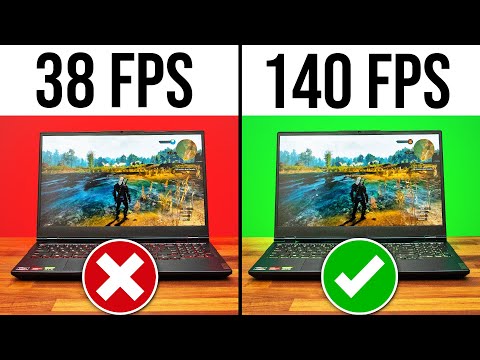
By Jarrod'sTech Top 9 Gaming Laptop MISTAKES And How To Avoid by Jarrod'sTech
Undervolt your Laptop RTX 3070 for more FPS - Asus TUF F15 Dash
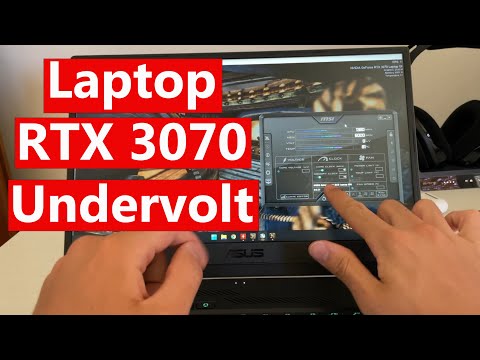
By ImWateringPSUs Undervolt your Laptop RTX 3070 for more FPS - Asus TUF F15 Dash by ImWateringPSUs

Title: How to OVERCLOCK Your GPU Ultimate Universal Guide 2025
Channel: exZact
How to OVERCLOCK Your GPU Ultimate Universal Guide 2025 by exZact
Wifi On Laptop
MSI Afterburner on Laptops: The SHOCKING Truth!
The world of gaming laptops is a complex tapestry woven with threads of cutting-edge technology, fervent passions, and often, a frustrating undercurrent of performance limitations. We, as enthusiasts, constantly search for ways to push our machines to their absolute limits, to squeeze every last frame-per-second (FPS) out of our precious silicon. And one tool reigns supreme in this quest: MSI Afterburner. But what if the reality behind using this software on a laptop isn't quite the glorious picture that’s often painted? Let us peel back the layers and reveal the "SHOCKING Truth" you need to know.
Unveiling the Potential: What MSI Afterburner Promises
MSI Afterburner, at its core, is a powerful utility allowing for granular control over your graphics processing unit (GPU). It offers a suite of tools designed to enhance performance. You can adjust the core clock speed, memory clock speed, and voltage levels of your GPU. Moreover, Afterburner provides robust fan control, enabling you to create custom fan curves to manage thermal throttling. This combination of features promises a world of enhanced performance: higher frame rates, smoother gameplay, and the potential to unlock latent power locked away by manufacturer defaults. The promise is seductive, the allure undeniable.
The Laptop Conundrum: Why Desktop Rules Don't Always Apply
The inherent design differences between desktop PCs and laptops introduce critical considerations. Desktops possess superior cooling systems, robust power delivery, and ample space, which allows for greater thermal headroom and more aggressive overclocking. Laptops, conversely, are compact, with tightly-packed components and often, limited cooling capabilities. This environment makes overclocking a delicate dance between performance gains and catastrophic thermal events.
Thermal Bottlenecks: The Achilles' Heel of Laptop Performance
The most significant hurdle when using MSI Afterburner on a laptop is thermal management. Laptops, by their nature, struggle to dissipate heat efficiently. The compact chassis and limited cooling solutions can easily lead to thermal throttling, where the GPU reduces its clock speeds to prevent overheating. Overclocking a laptop GPU, without addressing thermal issues, often results in lower performance than stock settings. We’ve seen this again and again. We would have been better off leaving it alone.
Power Limitations: A Restrictive Factor
Another crucial consideration is power delivery. Laptops often have power limitations imposed by the manufacturer to manage heat and ensure battery life. Overclocking your GPU demands more power, which can quickly exceed these limits. This can lead to instability, crashes, and ultimately, a diminished gaming experience. Many laptop GPUs are already operating close to their power limits at stock settings, leaving little room for overclocking.
MSI Afterburner: The Reality of Overclocking a Laptop GPU
While MSI Afterburner can be used on laptops, the results are frequently underwhelming. Significant performance gains are rare. The gains, when observed, are often offset by increased heat, fan noise, and potential instability. In many cases, you may only see marginal FPS improvements that are not worth the trade-offs.
Setting Realistic Expectations: What To Look For.
Before diving into overclocking your laptop with Afterburner, it’s crucial to temper your expectations. Do not aim for miracles. You will be disappointed. Aim for incremental gains, and always prioritize stability over raw clock speeds. Thoroughly monitor temperatures and monitor frame rates. Benchmark before and after, using a reliable tool like 3DMark or Unigine Superposition, to measure any real-world improvements.
The Art of Tuning: Optimizing Performance Through Strategic Tweaks
If you are determined to try overclocking your laptop, approach the process with caution and a methodical approach.
Monitoring is Key: Install MSI Afterburner and a monitoring tool like HWMonitor. These utilities allow you to track your GPU temperature, clock speeds, and power consumption in real-time.
Fan Curve Optimization: Before any overclocking, customize your fan curve. Set the fan to ramp up early and aggressively to keep temperatures under control. This is non-negotiable.
Core Clock Adjustment: Start with a modest core clock offset, perhaps +50MHz. Test the limits. Run benchmark tests for accuracy. Incrementally increase the core clock, monitoring for artifacts, crashes, or high temperatures.
Memory Clock Tweaks: Increase the memory clock in small increments, watching for instability. Artifacts, such as flickering textures or visual distortions, are a sign that you've pushed too far.
Voltage Considerations: Be extremely cautious with voltage adjustments. Only increase the voltage if you are comfortable with the risks.
Stress Testing: Run a demanding game or benchmark for an extended period to ensure system stability. Crashing after a few hours of gaming is a definite sign of instability.
Iterate and Refine: The process of overclocking is iterative. It involves testing, adjusting, and retesting. It takes time and patience.
Alternative Methods to Boost Laptop Performance
Given the inherent limitations of overclocking, consider these alternatives to enhance your gaming experience:
Clean Installation of Drivers: Always ensure your drivers are up-to-date. Drivers often contain performance optimizations that can make a big difference.
Undervolting: Undervolting involves reducing the voltage supplied to the GPU while maintaining its clock speeds. This reduces heat and power consumption, potentially leading to improved performance or stability in a compact form factor.
Driver Optimizations: Experiment with the settings within your graphics driver control panel (Nvidia Control Panel or AMD Radeon Software). You can often find performance gains by tuning these settings.
Clean Up Background Processes: Close unnecessary applications running in the background to free up system resources.
External Cooling Solutions: Consider using a laptop cooling pad or a more sophisticated external cooling solution that can improve heat dissipation.
The Shocking Truth Re-Examined: Beyond the Hype
The “SHOCKING Truth” is not necessarily that MSI Afterburner is useless on laptops. It's that the expectation is often significantly skewed. Overclocking can be possible, but the gains might be minimal. Always prioritize thermal management. Be prepared for this reality.
Conclusion: A Path Forward
MSI Afterburner remains a powerful tool. But its effectiveness on a laptop is limited by the constraints of the hardware. Approach overclocking with realistic expectations, a methodical approach, and a keen eye on thermal management. Explore alternative performance-enhancing techniques. The quest for optimal gaming performance on a laptop is not always a simple one, but by understanding the limitations and embracing the proper strategies, you can get the most out of your machine.
