hp display not working on laptop

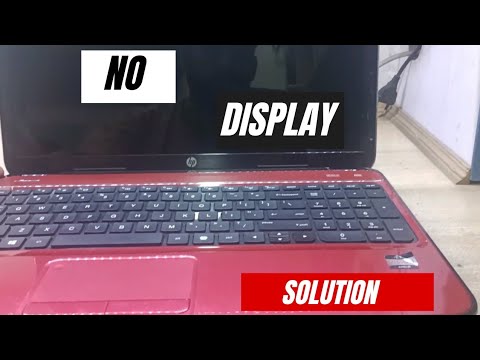
Title: Fix it Laptop ON but Display Black Black Screen Problem Laptop Starts but No Display
Channel: Tech Process
Fix it Laptop ON but Display Black Black Screen Problem Laptop Starts but No Display by Tech Process
hp display not working on laptop, hp monitor not working with laptop, hp screen not turning on laptop, display not showing on hp laptop, hp display not working, why is my hp laptop not displaying, hp laptop screen not working
HP Laptop Screen DEAD? FIX This NOW!
HP Laptop Screen Black? Don't Panic! Here's Your Survival Guide
The dreaded black screen on your HP laptop. A cold wave of despair washes over you, doesn't it? Suddenly, all those late-night projects, precious photos, and essential emails seem lost in the digital abyss. Don't you worry, though! Before you consign your trusty HP to the tech graveyard, let's explore potential solutions. We'll get that screen shining again!
Is It Really Dead? Ruling Out the Obvious First
Before you dive headfirst into complex fixes, consider this: the problem might not be the screen itself. Sometimes, for example, a simple oversight causes the blackout. Furthermore, before getting anxious, let’s eliminate the simple causes.
- Power Up Properly: Double-check your power adapter. Moreover, confirm it's securely connected to both the laptop and the wall outlet. Is the charging light illuminated? If not, try a different outlet. In addition to that, test your cord and brick with another device.
- External Monitor Check: Connect your HP laptop to an external monitor. This is an easy way to determine if the issue is indeed the screen. If the external monitor displays the image, the problem is likely within the laptop display itself.
- Listen Carefully: Can you hear the familiar sounds of your system booting up? Furthermore, are you hearing the fan whirring? If so, the laptop is starting. Perhaps the display is simply the culprit.
Troubleshooting Your HP Laptop's Screen: A Step-by-Step Guide
Okay, let's assume the initial checks didn't work. Therefore, time to begin some focused diagnostics. Here are several things you can try. We'll explore troubleshooting steps.
The Forceful Reboot:
Sometimes a stubborn software glitch is the problem. Consequently, a hard reset might be all you need.
- Power Down: Shut down your laptop completely.
- Remove the Battery: Disconnect the power cable. Then, remove the battery (if removable).
- Hold the Power Button: Press and hold the power button for a full 30-60 seconds.
- Reassemble and Boot: Reinsert the battery, reconnect the power adapter, and attempt to boot up.
The BIOS Recovery Dance
If the forceful reboot fails, consider trying a BIOS reset. As a matter of fact, the BIOS controls basic system functions.
- Restart and Interrupt: Power on your laptop. Immediately, repeatedly press the designated key to enter the BIOS setup. This key varies depending on your HP model (usually F2, F10, F12, or Esc).
- Locate the Defaults: Within the BIOS, look for a "Load Defaults" or similar option.
- Save and Exit: Select this option. Save the changes. Exit the BIOS. Allow your laptop to boot.
External Display Test (Again!)
Remember that external display? Connect it again. Then, try the function keys to switch displays. For example, some HP laptops have an "Fn" key combined with an F key (like F4) to toggle between displays. If this works, the problem becomes clearer.
Driver Dilemma and Updates
Outdated or corrupted display drivers sometimes cause screen problems. Thus, consider this potential fix.
- Boot in Safe Mode: If possible, try booting into Safe Mode. This launches Windows with minimal drivers.
- Device Manager: Right-click the Windows start button. Then, select "Device Manager."
- Display Adapters: Locate "Display adapters" and expand it.
- Update or Reinstall: Right-click your display adapter (usually Intel or NVIDIA). You may choose to either update the driver or uninstall it. If you uninstall, Windows will attempt to reinstall it upon restarting.
The Hard Drive Test
A failing hard drive, surprisingly, can contribute to display issues. Therefore, carry out a quick check.
- Boot Menu Access: Restart your laptop and immediately press the key to access the boot menu. (Often Esc or F12 during startup.)
- Boot from Recovery Drive: Try booting from the recovery partition if one exists.
- Run HP's Diagnosis Tool: HP laptops usually have a built-in diagnostic tool. It can check memory and hard drive health. Access it through the boot menu.
Hardware Woes: When It's Time to Seek Professional Help
If you've exhausted the software solutions, you might be facing a hardware failure. Unfortunately, this is a distinct possibility.
- Screen Replacement: A cracked screen or malfunctioning backlight necessitate a screen replacement.
- Motherboard Issues: Problems with the graphics chip on the motherboard can also cause a black screen. These repairs are often complex.
- Professional Evaluation: Therefore, it's time to contact a qualified laptop repair technician.
Prevention is Key: Keeping Your HP Screen Healthy
Finally, here's how to keep your screen happy:
- Gentle Handling: Close the lid and transport your laptop with care. Avoid placing heavy objects on the screen. Moreover, protect your device.
- Proper Cleaning: Use a microfiber cloth and a screen-specific cleaner. Avoid harsh chemicals.
- Regular Updates: Keep your drivers and operating system updated. This helps prevent software conflicts.
- Power Down Properly: Always shut down your laptop properly. Do not abruptly cut the power.
So, take a deep breath. With a bit of patience and these troubleshooting steps, you might resolve your HP laptop's screen issue. And most importantly, don't give up! Your data is likely safe. Remember the solutions presented. Good luck!
One Earbud Dead? Laptop Audio FIX (Shockingly Easy!)HP Laptop Screen DEAD? FIX This NOW!
Alright, folks, let's face it. There's nothing quite as panic-inducing as that dreaded black screen staring back at you from your HP laptop. One minute you're happily typing away, watching a movie, or, let's be honest, doomscrolling through social media, and the next poof – darkness. Your screen is dead. But before you start hyperventilating and contemplating a new laptop purchase, take a deep breath. We’ve all been there, and in many instances, the situation is far from hopeless. We're going to tackle this head-on and figure out how to bring that digital window back to life.
1. The Dreaded Black Screen: Understanding the Problem
Okay, so your HP laptop screen is black. What exactly could be the problem? It's like being in a darkened room trying to locate a missing object. We need to figure out what’s causing the blackout before we can flip the switch. It could be something as simple as a loose connection or as complex as a failing component. But the first step is understanding that there are a few common culprits:
- Display Issues: This includes problems with the screen itself, the backlight, or the video card (also known as the graphics processing unit, or GPU). Imagine it's like a lightbulb going out in your room; it could be the bulb (screen) itself, the wiring (cables), or the electricity supply (GPU).
- Power Problems: If your laptop isn't getting enough power, the screen won't even turn on. This could be a faulty charger, a dead battery, or issues with the power supply unit (PSU) inside the laptop.
- Software Glitches: Sometimes, a software malfunction, a corrupted driver, or even a frozen application can cause the screen to go black. Think of it like a traffic jam halting everything.
2. Basic Troubleshooting: Your First Line of Defense
Before we start dismantling your beautiful HP, let's try some quick and easy fixes. These are the digital equivalent of checking if your car has gas before calling a mechanic.
- The Power Button Dance: This sounds silly, but often a simple restart can work wonders. Hold down the power button for 15-20 seconds to force a shutdown. Then, wait a minute and try turning it back on. Sometimes, it's just a glitch that a good ol' reset can fix.
- Check the Charger: Make sure your charger is firmly plugged into both the laptop and the wall outlet. Try a different outlet, and see if the charging indicator light is on. If it's not, you might be dealing with a charger issue.
- External Monitor Test: This is a crucial step. Connect your HP laptop to an external monitor or TV using an HDMI or VGA cable. If the external display works, it strongly suggests the problem lies with your laptop's screen, not the graphics card or software (phew!). If the external monitor also shows a black screen, then the graphics card or motherboard could be faulty.
- Listen For Sounds: Do you hear the familiar whirring of the fans, the startup chime, or any other sounds that indicate your laptop is trying to boot up? If you hear those sounds, but the screen remains black, it points even more strongly to a display problem.
3. The Brightness Adjustment Fiasco: A Simple Oversight?
Believe it or not, sometimes the simplest solution eludes us. Have you, by any chance, fiddled with the brightness controls recently? Your screen might be on, but at its absolute dimmest setting.
- Keyboard Shortcut: Try pressing the brightness up key (usually a sun icon on the keyboard) a few times. Often, this is a Function key (Fn) combined with another key, like F2 or F3.
- External Monitor Again: If you can get an image on an external monitor, you can adjust the brightness settings through your operating system (usually in the display settings).
4. Dissecting the Display: Hardware Checks
If the basic troubleshooting didn't work, we're going to have to get a little more hands-on. Don't worry; we’ll take it easy.
- Inspecting the Screen: Carefully look at the screen, even if it's black. Shine a flashlight at it from different angles. Can you see a faint image? This might indicate a backlight issue.
- Check for Physical Damage: Are there any cracks, dents, or signs of liquid damage on the screen? If so, you might have a hardware problem.
- Opening Up Your Laptop (Carefully!): This is a step best left to those comfortable with electronics. Research the specific model of your HP laptop online. You'll find tutorials and videos specifically for your model. Refer to your HP laptop's service manual, if you have it.
- Checking the LCD Cable: Inside the laptop, you'll find a cable that connects the screen to the motherboard. Ensure the cable is correctly connected and not damaged.
5. Driver Dilemmas: Dealing with Software Issues
Software can be the culprit. Sometimes, a corrupted or outdated graphics driver will result in a black screen.
- Safe Mode: Try booting your laptop in Safe Mode. This loads a minimal set of drivers. If the screen works in Safe Mode, it's highly likely you have a driver issue. To enter Safe Mode, you usually need to repeatedly press the F8 key (or Shift + F8 on some newer models) during startup.
- Driver Updates: If you can get into Safe Mode, or even if you can connect to an external monitor, boot your laptop. Then, go to the Device Manager (search for it in the Windows search bar) and update your display adapter drivers.
- Driver Rollback: If a recent driver update caused the problem, you could try rolling back to a previous version. The Device Manager has an option to do this.
6. Power Problems Unveiled: Battery, Charger, and PSU
Power is the lifeblood of your laptop. Let's investigate potential power issues.
- Battery Check: Try removing the battery (if possible) and running the laptop solely on the AC adapter. This eliminates the battery as a potential culprit.
- Charger Testing: If you have a spare charger compatible with your HP laptop, try using it. This can help isolate the charger as the source of the problem.
- PSU Investigation: The PSU (Power Supply Unit) inside the laptop can fail. If you are comfortable opening up your laptop, and if you're skilled at electronics, look for signs of damage (burnt components, bulging capacitors). Proceed with caution and always disconnect the laptop from the power source before opening it!
7. Graphics Card Examination: The Video Card's Role
The graphics card (GPU) processes all visual information. If it goes awry, it could lead to a black screen.
- External Monitor (Again!): If an external monitor also shows a black screen, the graphics card is a likely culprit.
- Advanced Diagnostics: Some laptops have diagnostic tools that can test the graphics card. Consult your laptop's documentation or HP support for information.
8. The Motherboard Mystery: The Silent Core
The motherboard is the heart of your laptop, connecting all the components. A motherboard issue can cause a black screen, as well.
- Component Checks: Examine the motherboard for any visible signs of damage, such as burnt components or loose connections.
- Professional Help: Motherboard repairs are often best left to professionals.
9. The Screen Replacement Solution: When All Else Fails
If you've exhausted all other options and the screen still refuses to cooperate, it may be time to consider a screen replacement.
- Find Your Model Number: You'll need this to order the correct replacement screen. The model number is usually found on a sticker on the bottom of your laptop.
- Online Resources: Several websites offer replacement screens and tutorials for HP laptops. Research thoroughly.
- Professional Installation: If you're not comfortable with the DIY approach, seek professional help.
10. Avoiding Future Black Screen Blues: Prevention Tactics
Let's learn from this and take steps to prevent this issue from returning.
- Regular Backups: Regularly back up your important files. This way, if your laptop fails, you won't lose everything.
- Update Drivers: Keep your graphics drivers updated.
- Protect Your Laptop: Avoid extreme temperatures, moisture, and physical impacts.
- Gentle Handling: Close the lid gently and avoid placing heavy objects on your laptop.
- Regular Cleaning: Clean your laptop regularly to prevent dust buildup, which can cause overheating.
11. The BIOS Blunder: Could It Be the BIOS?
The BIOS (Basic Input/Output System) is the software that initializes your hardware. If the BIOS is corrupt, it could lead to a black screen.
- BIOS Recovery: Some HP laptops have a BIOS recovery feature. Consult your HP documentation to learn how to initiate this.
- External Monitor Again: If you can get an image on an external monitor, you might be able to enter the BIOS settings (usually by pressing Del, F2, F10, or Esc during startup) and reset the BIOS to its default settings.
12. Over
Toshiba Satellite Cursor Nightmare? FIX IT NOW!Fix a laptop that starts but the screen remains black HP Notebooks HP Support

By HP Support Fix a laptop that starts but the screen remains black HP Notebooks HP Support by HP Support
Hp Laptop HP pavilion G6 Turns On But No Display Black Screen fan running Solution
By info topic Hp Laptop HP pavilion G6 Turns On But No Display Black Screen fan running Solution by info topic
Hp Computer Turning On But No Display Green Light Fan Spin Fast Solution - Hp Compaq 8200 no display

By info topic Hp Computer Turning On But No Display Green Light Fan Spin Fast Solution - Hp Compaq 8200 no display by info topic

Title: How to Solve HP Laptop No Display but Caps lock Blinking Problem Tamil Tech Support Tamil
Channel: Tech Support Tamil
How to Solve HP Laptop No Display but Caps lock Blinking Problem Tamil Tech Support Tamil by Tech Support Tamil
Working With Laptop
HP Laptop Screen DEAD? FIX This NOW!
We understand the sinking feeling. You power up your HP laptop, anticipating the familiar hum of activity, the vibrant display that brings your digital world to life, but instead, you're met with a stark, unresponsive black screen. Panic sets in, but before you resign yourself to the dreaded thought of data loss or expensive repairs, allow us to guide you through a comprehensive troubleshooting process. We're here to empower you with solutions, providing a detailed roadmap that could potentially breathe life back into your HP laptop's screen.
Preliminary Checks: Eliminating the Obvious Culprits
Before diving into complex technical solutions, let's perform some foundational checks. These simple verifications can often pinpoint the root cause of the problem and save you considerable time, frustration, and perhaps even unnecessary expenses.
Power Source and Battery Status: Ensure your HP laptop is securely connected to a working power outlet. Check the power adapter's LED indicator; a solid green light often signifies power delivery. If using the battery, check its charge level. Attempt to power on the laptop with the charger plugged in, even if the battery appears full. Sometimes, a faulty battery can interfere with the system's startup.
External Display Test: This is a crucial step to determine whether the issue lies with the laptop's screen itself or a more fundamental problem. Connect your HP laptop to an external monitor or TV using an HDMI, VGA, or USB-C cable, depending on the ports available on your laptop. If the external display shows the laptop's operating system, the problem is likely with your laptop's screen or its connecting cable (LVDS cable). If the external display also remains blank, the problem is deeper.
Listen for Startup Sounds: Even with a dead screen, your laptop might be booting up. Listen carefully for fan activity, hard drive spinning up, or any sounds associated with the operating system loading. If you hear these sounds, your laptop is starting, making the screen the likely culprit.
Advanced Troubleshooting: Delving Deeper into the Issue
If the preliminary checks don't resolve the issue, it's time to move onto more detailed diagnostics. We'll explore several potential causes, providing specific steps for each.
The "Hard Reset" Technique: This simple procedure can sometimes resolve minor software glitches that might be hindering the display. To perform a hard reset, follow these specific steps:
- Power Down: Completely shut down your HP laptop. Unplug the power adapter if it's connected.
- Remove Battery: (If removable) Turn the laptop over. Locate the battery release latches and slide or press them to remove the battery from the laptop.
- Press and Hold the Power Button: Press and hold the power button for a full 30-60 seconds. This drains any residual power from the components.
- Reassemble: Put the battery back in (if removable) and reconnect the power adapter.
- Attempt Startup: Power on the laptop. Observe the screen.
The BIOS/UEFI Access and Diagnostics: The BIOS (Basic Input/Output System) or UEFI (Unified Extensible Firmware Interface) is a crucial piece of software that controls your laptop's initial startup process. Accessing this can provide valuable diagnostic information.
- Power Off: Ensure the laptop is completely shut down.
- Startup and Key Press: Power on the laptop and immediately start repeatedly pressing the "Esc," "F2," "F10," or "Del" key (depending on your HP model). The correct key to enter the BIOS is often displayed on the initial startup screen, but you might need to experiment.
- BIOS/UEFI Interface: Once in the BIOS/UEFI, look for diagnostic tools or system information options. These vary depending on the model.
- Check Screen Information: Within the BIOS/UEFI, there's sometimes a display information section. This section may display the make and model of the monitor, screen resolution, and other display-related information. If the BIOS itself doesn't show the screen, the chances are that the screen has a mechanical problem.
- Exit and Reboot: After reviewing the BIOS/UEFI, exit and allow the laptop to reboot normally. If the screen remains dark, the issue extends beyond the BIOS.
Testing with an External Monitor Through BIOS: If you are still experiencing a blank screen in the BIOS, try the following. Connect an external monitor or TV to your laptop and turn on the laptop to enter the BIOS or UEFI. Sometimes, the BIOS/UEFI will not display on the laptop screen, but will be displayed on an external monitor.
Checking the LVDS Cable and Screen Connections: Inside your laptop resides a critical cable that connects the motherboard to the display panel—the LVDS (Low-Voltage Differential Signaling) cable. This cable's integrity is vital for screen functionality. This procedure requires a level of technical proficiency and comfort with disassembling electronics.
- Power Off and Disconnect: Completely shut down your HP laptop and unplug the power adapter. Disconnect any external peripherals.
- Disassembly (Proceed with Caution):
- Carefully detach the top plastic bezel frame by using plastic pry tools to pop it out. Use appropriate plastic tools to prevent damage.
- Once you are done with the bezel frame, you will have access to the screen. Usually, it will be attached to the back of the laptop with screws. Remove those screws, and carefully remove the screen from the laptop. Place the screen aside.
- Now access your laptop's motherboard. You will need to take out the screws from the back and open it. Now you will be able to access the connectors.
- LVDS Cable Inspection:
- Carefully and gently unplug the LVDS cable from the motherboard and the back of the screen.
- Inspect the connectors on both ends of the LVDS cable for any signs of damage, corrosion, or bent pins.
- If you have any compressed air, use it to clean any dust or debris from the connectors.
- Reconnect the cable firmly, ensuring it's fully seated. Sometimes, simply reseating the cable can resolve the screen issue.
- Screen Inspection: Look for any obvious damage to the screen itself, such as cracks, pressure marks, or discoloration.
The Inverter Board (for Older Laptops) and Backlight Issues: Some older HP laptops use an inverter board to provide power to the backlight. If the inverter board fails, the screen may appear black, even if the display itself is functioning. Modern laptops use LEDs for backlighting, but we'll cover both possibilities.
- Inverter Board Test (Older Models): If your laptop model uses an inverter board, try replacing it. This is a relatively inexpensive part. If this is the issue, this replacement alone will solve the problem.
- Backlight Inspection and Testing (LEDs): If LEDs are used, it's possible the backlight has failed. This will present as a black screen, although you might still see a faint image if you shine a flashlight on the screen at a very specific angle. Unfortunately, replacing a backlight can be complex and may require specialized tools and expertise.
Software-Related Causes and Solutions:
While hardware problems are common, software glitches can also lead to a dead screen.
Driver Issues: Outdated, corrupted, or incompatible display drivers can cause display problems.
- Boot into Safe Mode: Attempt to boot your HP laptop into Safe Mode. This loads a minimal set of drivers and can help determine if a driver is the problem. To do this, repeatedly press the "F8" or "Shift + F8" key (depending on your Windows version) during startup.
- Driver Updates: If you can see the screen in Safe Mode, the driver may be the problem.
- Once logged in, go to Device Manager (search for it in the Windows search bar).
- Expand "Display adapters".
- Right-click on your display adapter (e.g., Intel HD Graphics, NVIDIA GeForce) and select "Update driver."
- Choose "Search automatically for drivers" or "Browse my computer for drivers" (if you have downloaded drivers manually).
- Driver Rollback: If a recent driver update coincided with the screen issue, try rolling back to a previous driver version. Right-click on your display adapter in Device Manager, select "Properties," go to the "Driver" tab, and click "Roll Back Driver" if available.
- Driver Uninstallation: Uninstalling and then reinstalling the driver (after a restart) can sometimes fix a driver problem.
Operating System Corruption: Though less common, a corrupted operating system can sometimes cause significant display issues.
- System Restore: If you have created system restore points, you can try restoring your system to a previous state. Go to the System Protection tab in the Control Panel and use System Restore.
- Operating System Reinstall: If all other options fail, a clean installation of the operating system might be necessary. Back up your data before starting this process. This can be time-consuming but may resolve persistent software-related issues.
Professional Help and Data Recovery
If you have followed all the troubleshooting steps and still have a dead screen, it's time to seek professional help.
Laptop Repair Specialists: Search for reputable laptop repair services in your area. They will have the expertise, tools,
