how to charge laptop when charger is not working

Title: How to FIX Any Laptop Not Charging while plugged in
Channel: GMODISM
How to FIX Any Laptop Not Charging while plugged in by GMODISM
how to charge laptop when charger is not working, what do i do if my laptop charger is plugged in but not charging, what to do when my laptop charger is not working
Laptop Charger Dead? 😱 3 Genius Ways to Power Up NOW!
Laptop Charger Apocalypse? Conquer Power Outages Like a Pro!
Picture this: you’re in the zone, fueled by caffeine and inspiration, when suddenly… blackout! Not the city-wide kind, but the dreaded laptop charger death. Panic sets in. Your work, your entertainment, your connection to the digital world – all hanging by a thread of remaining battery life. Don’t despair. I’ve been there. Therefore, I’m here to rescue you from this tech-induced nightmare. Prepare to become a power-up ninja.
1. The Universal Adapter: Your Knight in Shining Armor.
First things first, let's explore the obvious. You might have a universal adapter. This is your first line of defense. These versatile devices are designed to work with a wide array of laptops. They are true lifesavers in a charger emergency. Consequently, if you have one, now is the time to dust it off. Check the voltage and amperage requirements of your laptop. The adapter's output must match them. Otherwise, damage could occur. Furthermore, these adapters often include multiple tips. This makes them compatible with various laptop brands and models. You may have luck with one.
Finding the Right Universal Adapter (If You Don't Own One Yet):
If you do not own one, don’t fret. Thankfully, finding a universal adapter is relatively easy. Head to your local electronics store. Or, browse online retailers like Amazon or Best Buy. However, you should make sure you buy a quality product. Read reviews. Ensure it has safety certifications. A poorly made adapter can be more trouble than it's worth. Also, look for one with a good warranty. This gives you peace of mind. So, invest in a reliable one.
2. Unleash the Power of USB-C (If Your Laptop Supports It!).
Now, let’s assume you have a more modern laptop. Perhaps it features a USB-C charging port. This opens up a world of possibilities beyond just the charger. This is a game-changer. Because USB-C is quickly becoming a universal standard, so many devices now use it. Think smartphones, tablets, and even external monitors. Therefore, you might already own a USB-C charger that is compatible with your laptop.
Borrowing or Improvising with USB-C:
Consider these scenarios. Do you have a friend or family member nearby? Ask them if they have a USB-C charger. Maybe their phone or tablet charger will work. Or, perhaps you own a USB-C power bank. These are excellent as a temporary power source. However, please verify that the output amperage matches your laptop. This will help with safety. Many laptops can be charged slowly via some USB-C chargers. Eventually, it is better than nothing.
Key Considerations for USB-C Charging:
Ensure the wattage of the charger meets your laptop's requirements. Otherwise, your laptop may charge at a slower rate. It might not charge at all. Also, make sure the USB-C cable is in good condition. A damaged cable can lead to charging issues. Sometimes, a low-quality cable can cause problems. In short, always prioritize safety.
3. The External Battery Pack: Your Portable Power Lifeline.
Finally, we arrive at the ultimate emergency solution: the external battery pack. More than just a backup, a good battery pack can give you hours of extra runtime. Think of it as a portable power plant for your laptop. So, these packs come in various sizes and capacities. Thus, choose one that suits your needs. Some even offer AC outlets. They provide a full-fledged power source.
Choosing the Right External Battery Pack:
When selecting a battery pack, consider its capacity (measured in watt-hours). Also, check the output voltage and amperage. You will need these to match your laptop's requirements. Larger capacity packs cost more. However, they provide longer runtimes. Also, look for features such as multiple charging ports. This can allow you to juice up other devices simultaneously.
Tips for Using Your External Battery Pack:
First, fully charge your battery pack ahead of time. Then, connect it to your laptop when your battery gets low. Some packs offer different charging modes. Experiment to find the one that works best for you. Keep your battery pack cool and dry to maximize its lifespan. In addition, consider carrying your battery pack in a protective case. Especially if you travel frequently.
Embrace the Power!
So, there you have it. Three genius ways to conquer a dead laptop charger. Armed with these tips, you're now ready for any power outage. You won’t have to worry about losing your train of thought ever again. Remember, preparation is key. Therefore, keep these solutions in mind. You will be grateful later! Go forth and conquer the digital world.
Laptop Speakers HATE This ASIO4ALL Trick! (Works 100%)Laptop Charger Dead? 😱 3 Genius Ways to Power Up NOW!
Hey tech adventurers! Ever stared at a black screen, heart sinking faster than a lead balloon, because your laptop charger decided to take an early retirement? We’ve all been there. Suddenly, your lifeline to work, entertainment, and keeping up with the cat video flow vanishes. Panic sets in. Don't worry! We're here to turn that frown upside down. We’re going to explore three ingenious ways to get your laptop powered up, right now, before you succumb to digital withdrawal. Consider this your ultimate laptop survival guide.
1. The USB-C Savior: Embracing the Universal Powerhouse 🔌
Let’s kick things off with a modern marvel – the USB-C port. Think of it as the Swiss Army knife of connectors: versatile, efficient, and often overlooked. Many modern laptops, especially MacBooks and newer Windows models, boast a USB-C port capable of both charging and data transfer. If your charger has gone kaput, and your laptop supports USB-C charging, you're in luck!
- The Power of a Phone Charger (Sometimes): If you have a USB-C phone charger (like from a newer Android phone or even an iPad), give it a shot! While it might not charge as quickly as your dedicated laptop charger, it will provide some juice. Think of it as a slow drip feeding your battery.
- The Power Delivery (PD) Promise: Look for chargers specifically labeled "USB Power Delivery" or "USB PD." These are designed to deliver the appropriate voltage and amperage for laptops, offering faster and safer charging. They are typically more powerful than standard phone chargers, and you might even find one that matches your laptop's original charging performance.
- The Fine Print: Check your laptop's manual or online specifications to see if it supports charging via USB-C, as not all models do. Also, the wattage of the USB-C charger is crucial. A charger with too low a wattage may not provide enough power to charge, or it’ll only charge when the laptop is off.
2. The Universal Power Adapter Hustle: A Lifesaver in a Pinch 💡
If USB-C isn't an option (or you simply lack a compatible charger), fear not! The next hero of our tale is the universal laptop power adapter. These nifty devices come with a variety of interchangeable tips, designed to fit almost every laptop brand and model under the sun. Think of it as the ultimate backup charger, your digital Swiss Army knife when a charging crisis hits.
- Finding Your Match: Check the voltage and amperage requirements of your laptop (usually printed on your original charger or the bottom of your laptop) before selecting a universal adapter. This information is critical to ensure you choose a compatible adapter that won't damage your device.
- Reading the Labels: Universal adapters often come with a chart or a guide that helps you identify the correct tip for your laptop model. Take your time and be precise because you might need to try a few different tips to get the perfect fit.
- The Power of Prep: Consider getting a universal adapter before your original charger bites the dust. That way, you are already prepped! It’s like having your emergency stash ready to go.
3. The External Battery Pack Power-Up: Unleash the Mobile Oasis 🔋
Sometimes, you need a power source that's as portable as your laptop itself. That's where external battery packs, also known as power banks, come into play. While primarily designed for smartphones and tablets, many now boast enough juice (and the correct voltage) to charge laptops, especially those with USB-C charging capabilities.
- The Wattage Warrior: When shopping for a laptop-compatible power bank, pay close attention to its wattage and capacity (measured in milliampere-hours or mAh). You'll need a power bank that can deliver a wattage that matches or exceeds your laptop’s charging requirements.
- The Port Problem: Make sure the power bank has a USB-C port (or the appropriate adapter) to charge your laptop. Some power banks provide regular outlets—essentially, they are mini-inverters—that allow you to plug in your laptop's original charger.
- Capacity Counts: Consider how long you need your laptop to last. A larger capacity power bank will provide more charging cycles, meaning you can recharge your laptop multiple times before the power bank needs its own power boost. Think of it as carrying your own personal power plant!
4. The Desktop Charger Dilemma: A Desk-Side Lifeline ⚡️
For those of us who primarily use their laptops at home or in a fixed location, keeping a spare desktop charger on hand can be a lifesaver. This is especially true if you frequently move between locations or if your original charger has a tendency to "disappear" (we’ve all been there, right?).
- The Price of Preparation: Investing in a spare charger may seem like a luxury, but when your primary charger fails, it becomes an essential. Consider it an insurance policy against unexpected down time.
- The Compatibility Check: Make sure any spare charger you purchase is compatible with your laptop model. Check the model number, voltage, and amperage to ensure the charger works effectively.
- The Placement Priority: Keep your spare charger in a convenient location, such as your desk, a drawer, or near your laptop bag, so it’s always ready for action.
5. The Car Charger Connection: Power on the Road 🚗
If you're a road warrior, a car charger can be an absolute game changer. They plug into your car's cigarette lighter (or power outlet) and provide a way to charge your laptop while you’re on the go. It’s like bringing your own personal power grid with you.
- The Power Inverter Option: Instead of a dedicated laptop car charger, you can opt for a power inverter. This device converts DC power from your car’s battery to AC power, allowing you to use your laptop's standard charger.
- The Voltage Venture: Make sure the car charger or power inverter you choose is compatible with your laptop’s voltage requirements. Check the charger's specifications before you make your purchase.
- The Travel Tip: Always keep a car charger handy, especially if you are travelling long distances (or if you're just a frequent commuter). They can save you from a dead battery and a lost day of work.
6. The Battery Saver Strategies: Stretching Your Existing Power ⏳
Before resorting to all-out charging solutions, consider making the most of the power you do have. Sometimes, a few simple tweaks can buy you enough time to find a power source.
- The Brightness Battle: Reduce your screen brightness substantially. Your screen is a major power hog.
- The Unplugged Unessentials: Unplug any unnecessary peripherals, such as external hard drives, printers, or anything else that's drawing power.
- The Background Brigade: Close unnecessary applications and browser tabs. They may be running in the background, consuming precious battery life.
- The Power Saving Pro: Use the power saving settings to reduce your CPU's processing power.
7. The Check-up Checklist: Preventing Future Power Problems 📝
Prevention, they say, is the best cure. After navigating a laptop charger crisis, it's a good idea to take steps to prevent it from happening again.
- The Cable Conundrum: Be careful when handling your charger's cable. Avoid sharp bends or pulling on the cable. This can compromise the internal wires and lead to a failure.
- The Temperature Test: Protect your charger from extreme temperatures. Excessive heat or cold can damage the internal components.
- The Dust Dilemma: Keep your charger clean and dust-free. Dust accumulation can lead to overheating.
8. The DIY Diagnosis: Troubleshooting Your Current Charger 🕵️
Before you give up on your original charger completely, try some basic troubleshooting steps. Sometimes, the problem might not be as grave as it seems.
- The Connection Check: Ensure the charger is securely plugged into both the wall outlet and your laptop. Sometimes, a loose connection is the culprit.
- The Outlet Audit: Try plugging your charger into a different wall outlet. The original outlet might not be supplying power.
- The Clean Connection: Clean the charging port on your laptop with compressed air or a soft brush to remove any dust or debris.
- The Visual Verification: Inspect your charger's cable for any signs of damage, such as cuts, fraying, or exposed wires.
9. The Replacement Route: Purchasing a New Charger 🛒
If all else fails, the time may have come to purchase a new laptop charger. This is a necessary expense, so it’s worth investing in a quality product.
- The Brand Boost: Consider purchasing a charger from the same manufacturer as your laptop. They are designed to meet the specifications of your device.
- The Specification Savvy: Make sure the new charger has the same voltage and amperage as your original charger.
- The Warranty Wisdom: Purchase a charger with a warranty. This will protect you in case of any manufacturer defects.
10. The Portable Power Station: The Ultimate Backup Strategy 🏕️
For the ultimate peace of mind, consider investing in a portable power station. These devices are essentially large capacity power banks that can supply power to laptops, phones, and various
Yoga Laptop Touchscreen DEAD? FIX This NOW!Plugged In, Laptop Battery Not Charging Windows 1011 Solution 2 Methods

By Microsoft Sarker Plugged In, Laptop Battery Not Charging Windows 1011 Solution 2 Methods by Microsoft Sarker
Repair Laptop Damage Battery or Not Charging Battery Easy Way
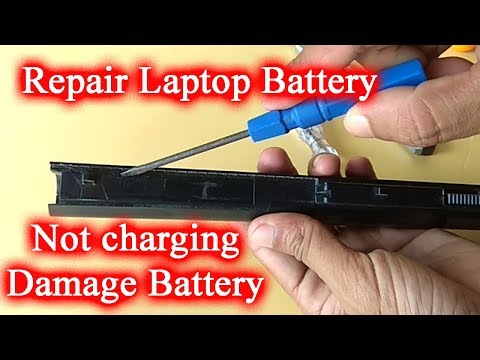
By IT Magics Repair Laptop Damage Battery or Not Charging Battery Easy Way by IT Magics
How to Fix Laptop Not Charging to 100 Percent How to Fix Laptop Battery Stops Charging at 80

By Technical Sitaram How to Fix Laptop Not Charging to 100 Percent How to Fix Laptop Battery Stops Charging at 80 by Technical Sitaram

Title: How to Fix Laptop Not Charging Battery Via USB-C Super Fast Version
Channel: GMODISM
How to Fix Laptop Not Charging Battery Via USB-C Super Fast Version by GMODISM
Wifi On Laptop Phone
Laptop Charger Dead? 😱 3 Genius Ways to Power Up NOW!
The dreaded moment arrives: your laptop screen flickers, dims, and then, the black screen of death. Your charger, the lifeline to your digital world, has failed. Panic sets in. Deadlines loom. Important documents remain unsaved. But fear not! We've all been there. Don't despair; you will not be left stranded with a lifeless laptop. This comprehensive guide will equip you with actionable strategies to revive your depleted device and reclaim your productivity. We will explore three ingenious solutions, going beyond the surface level to provide you with in-depth, practical advice to get your laptop charging again, fast.
1. The Universal Charger Savior: Compatibility and Voltage Verification
The first step, the most immediate recourse, is often overlooked. Do you have a compatible, universal charger on hand? Perhaps a spare from an old laptop, a friend's charger, or even one from a different brand? Before you dismiss these options, diligent inspection is crucial.
Deciphering the Label: Every laptop charger bears a label detailing its specifications. This label contains crucial information. Locate the output voltage (measured in volts, or "V") and the amperage (measured in amps, or "A") or wattage (measured in watts, or "W"). For a charger to be compatible, its voltage must match the laptop's voltage requirements, ideally, to the decimal place. The amperage of the replacement charger can be equal to or greater than the original charger's amperage. A higher amperage rating will not harm your laptop and may even result in faster charging. A lower amperage, however, can damage your laptop, so heed this piece of advice.
Pinpointing the Right Connector: Beyond the electrical specs, the connector itself matters. Carefully observe the connector on your laptop and compare it to the available chargers. Different laptop brands and models employ a variety of connector shapes and sizes. Some common types include:
- Barrel Connectors: These are cylindrical, with a pin inside. The size and the diameter of the pin are key.
- USB-C Connectors: Increasingly popular, these are reversible and versatile. However, ensure the USB-C port on your laptop supports power delivery (PD).
- Proprietary Connectors: Some manufacturers develop exclusive connectors that are harder to find.
- Slim Tip Connectors: These are frequently found on thinner laptops.
If you're unsure, consult your laptop's manual or the manufacturer's website. Searching your model number and the term "charger" or "power adapter" will quickly reveal the correct specifications and connectors. The most common problem is the wattage, not the amperage, so ensure it's at least the same as the original.
Voltage Mismatch Mitigation: If you can slightly deviate from a perfect voltage match (e.g., using a 19.5V charger for a laptop that requires 19V), proceed with extreme caution. Never use a charger with a significantly different voltage, as this poses a risk of irreparable damage. However, a minor difference may be tolerated in some cases. The best option is to use the correct charger for your laptop.
The Universal Charger Advantage: If you have access to a universal charger, test it immediately. Plug it into your laptop and observe the charging light, not just that it's getting power, such as the small battery symbol. If it is getting power, allow it to charge for at least 15-20 minutes before using it to avoid further issues. This quick diagnostic will tell you if the problem lies in the charger itself.
2. The Battery Power Plan: Extended Usage and Emergency Options
Even with a working charger, a dead laptop battery is a crippling problem. We will delve into strategies to extract every last drop of power from your battery, and if time allows, how to extend battery life without plugging in.
Emergency Power-Saving Mode: Nearly every laptop operating system features a power-saving mode. This crucial feature throttles the CPU, dims the screen, and disables non-essential features like Bluetooth and Wi-Fi when the battery is low. Access this mode immediately.
- Windows: Navigate to the battery icon in the system tray (bottom right corner). Click on it, and select "Battery saver" or a similar option. Customize the settings to reduce screen brightness and disable background applications.
- macOS: Click on the battery icon in the menu bar (top right corner) and select "Low Power Mode." You can further refine your settings in "System Preferences" > "Battery."
Maximize Battery Life at Any Moment: Beyond the power-saving mode, implement more aggressive strategies:
- Reduce Screen Brightness: The display is a significant power drain. Dim the screen as much as possible while still allowing you to see your work comfortably.
- Close Unnecessary Applications: Every running application consumes energy, especially those with complex graphics or network activity. Close any programs you're not actively using.
- Disconnect External Devices: Unplug external hard drives, USB devices, and any other peripherals that draw power from the laptop.
- Disable Wi-Fi and Bluetooth: If you don’t need internet access or wireless connectivity, turn off Wi-Fi and Bluetooth. These radios constantly search for signals and consume power even when idle.
- Minimize CPU Usage: Monitor your CPU usage in the task manager (Windows) or Activity Monitor (macOS). Look for applications that are consuming a high percentage of CPU resources and close them if possible.
- Use Airplane Mode: If you cannot connect to the internet, put your laptop in airplane mode. This disables all wireless radios.
- Hibernate, Don't Sleep: Instead of putting your laptop into sleep mode, choose to hibernate it. Sleep mode keeps the laptop partially powered, whereas hibernation saves the contents of your RAM to your hard drive and powers off completely until you wake it up.
Power Bank Rescue: Consider external power banks specifically designed for laptops. These devices often provide a USB-C port that supports Power Delivery (PD) or proprietary connectors that can deliver the necessary voltage and amperage to charge your laptop. Be sure to research power banks beforehand and ensure they are compatible with your laptop.
Assess Battery Health: If your battery drains rapidly, even when fully charged, it may be nearing the end of its lifespan. Most operating systems provide tools to check battery health. In Windows, you can run a battery report by opening the Command Prompt as an administrator and typing powercfg /batteryreport. In macOS, you can access battery health information in "System Information" (accessible through the "About This Mac" menu). If the battery health is significantly depleted, it may require replacement.
3. The Wall Outlet Warriors: Troubleshooting Power Outlets and Adapters
The final solution involves a deep dive into your power source, investigating the outlet and the power adapter itself, to identify any hidden faults. Even if your charger is working, a malfunctioning outlet or a damaged power supply can prevent your laptop from charging.
Outlet Verification: First, verify the outlet is actually supplying power. Test it with another device, such as a lamp or a phone charger. If the outlet is dead, check the circuit breaker for the room. If the breaker has tripped, reset it. If the outlet continues to fail after reseting the circuit breaker, then further electrical work is required.
Cable Inspection: Inspect the power cable for any visible damage, such as frayed wires, cuts, or exposed copper. A damaged cable can be a safety hazard and may also fail to deliver power. If you find any damage, replace the cable immediately.
Power Adapter Examination: Examine the power adapter itself. Check for loose connections where the cable enters the adapter. Listen for any unusual noises, such as buzzing or hissing. If the adapter feels unusually hot, turn it off immediately and allow it to cool down before touching it.
Deep Dive into the Troubleshooting: Should any damage be found, replace your power adapter. Consider cleaning the power adapter, cable, and your laptop's charging port. Lint and dust can occasionally build up and obstruct the connection.
- Use Compressed Air: Use a can of compressed air to blow out any dust or debris from the charging port and the connector on the power adapter.
- Clean the Connector: If the connector on the power adapter is dirty, use a dry, soft cloth to wipe it clean.
- Check for Bent Pins: Carefully inspect the pins inside the charging port of your laptop. Bent or damaged pins can prevent a good connection. If the pins are bent, it's best to take your laptop to a professional repair shop.
Testing with Alternative Power Sources: If possible, try plugging your laptop charger into a different outlet in your home or office. This will help you determine if the problem is with the specific outlet or with the charger itself. If you are travelling, test it in an outlet using the corresponding power adapter to your travel destination.
USB-C Hubs and Docking Stations: If your laptop uses USB-C charging, docking stations and hubs can be potential sources of problems. Avoid using a poorly-made or under-powered charger with a docking station.
